Configure Connection Details of Security Assessment Tools
Calibo Accelerate supports integration with leading security assessment tools to help teams identify, manage, and prevent security risks across the software delivery life cycle. You can centrally configure connection details for supported security assessment tools and use these configurations across products and pipelines. After a security tool is configured at the platform level, users can select the required tool configuration at the Deploy stage of a product to run security scans as part of the CI/CD pipeline.
Static code analysis tools such as SonarQube are used to identify code quality issues, bugs, and vulnerabilities during development, while container and artifact security tools such as Qualys and Snyk scan container images and dependencies to detect vulnerabilities and misconfigurations. These security checks help enforce quality gates and prevent insecure builds or images from being promoted to deployment environments.
Calibo Accelerate currently supports the following security assessment tools:
-
SonarQube
-
Qualys Cloud Platform
-
Snyk
To provide the connection details of your active accounts of these security assessment tools in the Calibo Accelerate platform, perform these steps:
-
Sign in to the Calibo Accelerate platform and click Configuration in the left navigation pane.
-
On the Platform Setup screen, on the Cloud Platform, Tools & Technologies tile, click Configure.
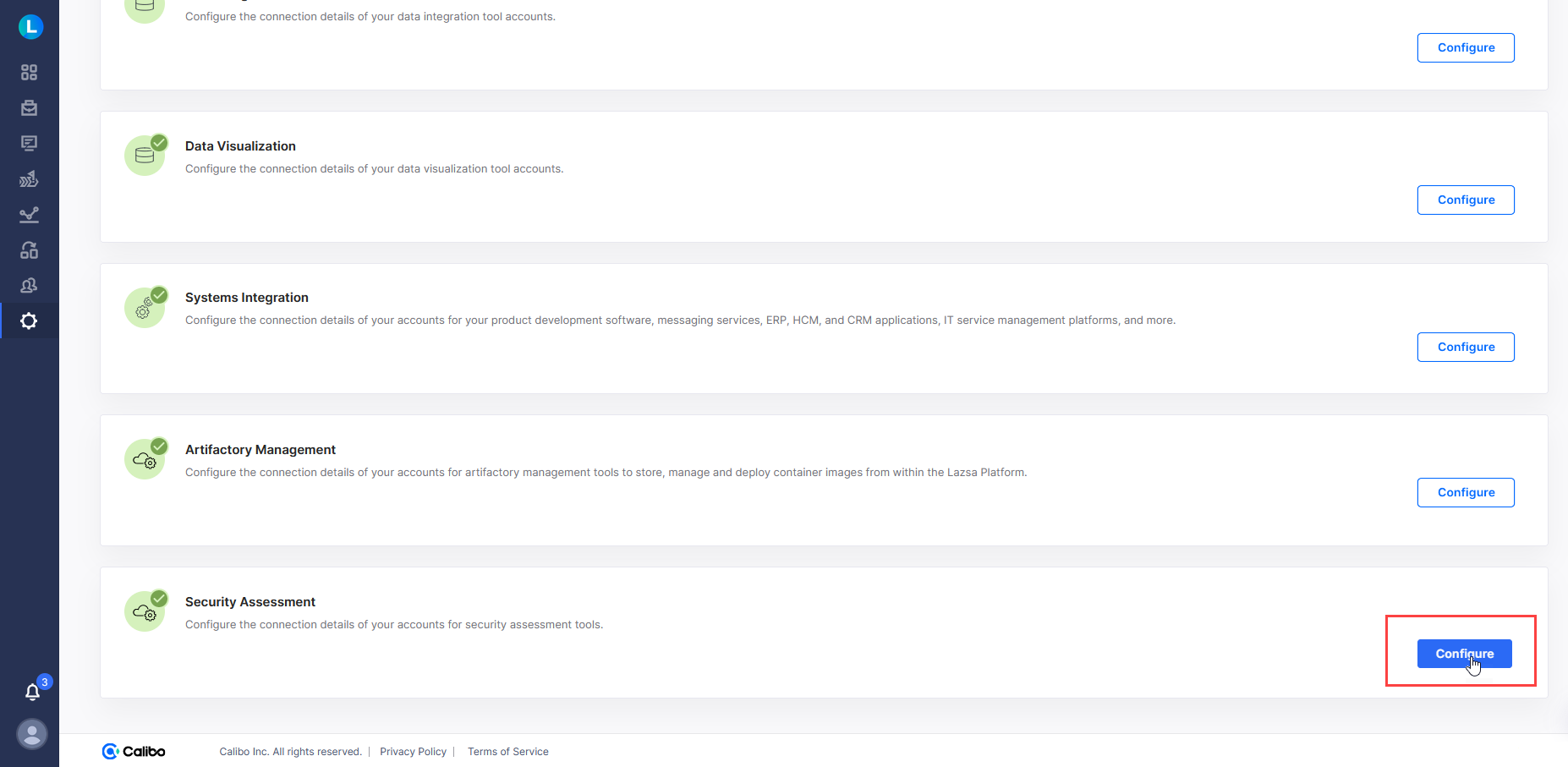
- On the Cloud Platform, Tools & Technologies screen, in the Security Assessment section, click Configure.
(After you save connection details for at least one security assessment tool, you see the Modify button here.)
-
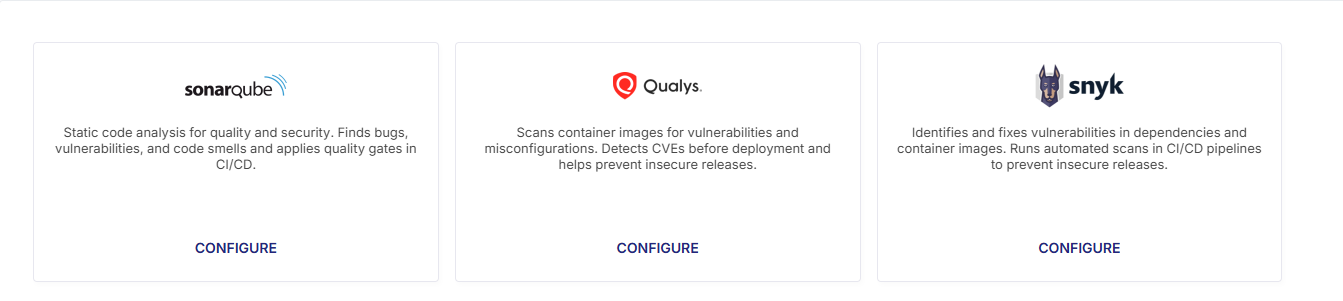
On the Security Assessment screen, click the SonarQube, Qualys, or Snyk tile to open the connection details form and configure the connection properties for your active accounts.
 SonarQube
Ensure that you complete the following prerequisites before you save the connection details for your SonarQube cloud and on-premises accounts:
Prerequisites
SonarQube on-premises
Tool User Input required in Calibo Accelerate Required Permissions Additional Details SonarQube on-premises -
URL
-
Admin Username
-
Token
Write Get all projects Sonar Cloud
Tool User Input required in Calibo Accelerate Required Permissions Additional Details SonarCloud -
URL
-
Admin Username
-
Token
-
Organization Details
Write Get all projects To save the connection properties of your SonarQube account, provide the following details:
-
Configuration Name: Give a name to your configuration. Your SonarQube connection details are saved by this name in the Calibo Accelerate platform.
-
SonarQube URL: Provide your SonarQube host URL.
-
Installation Type: Depending on whether you use self-managed SonarQube or cloud-based SonarCloud as a service, choose the type of your Sonar product installation.
-
On-Premises
-
Cloud
-
-
To provide your SonarQube or SonarCloud account credentials, do one of the following:
-
Connect using Calibo Accelerate Orchestrator Agent:
Turn on this toggle to use Calibo Accelerate Orchestrator Agent to programmatically retrieve the credential values stored in your secrets management tool within your private network and to establish communication with your SonarQube or SonarCloud instance.
In the Calibo Accelerate Orchestrator Agent dropdown list, all your configured agents are displayed. Select the one you want to use to connect to your SonarQube or SonarCloud instance.
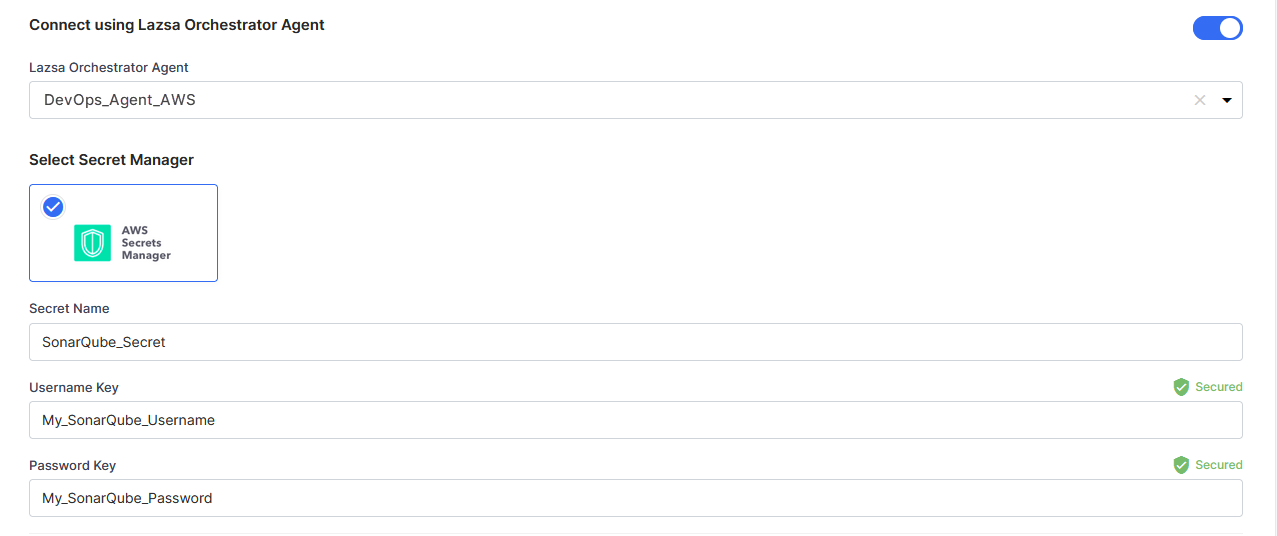
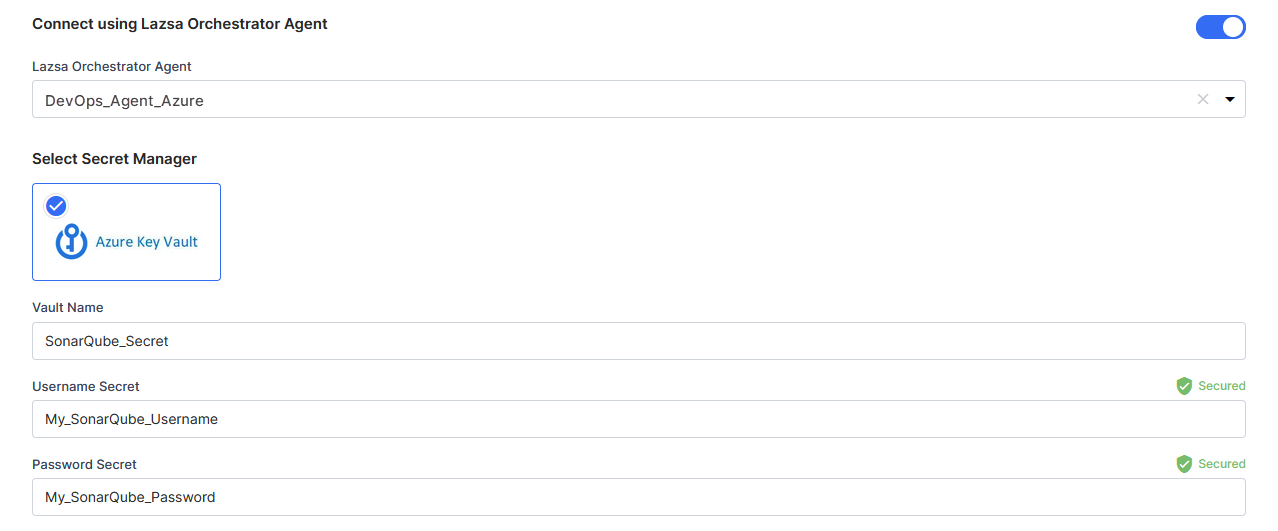
The secrets management tool that the selected Orchestrator Agent is authorized to access for retrieving secrets is auto-selected. Specify the details of SonarQube or SonarCloud secrets that the agent should retrieve from the secrets management tool. Currently, we support AWS Secrets Manager, Azure Key Vault, and Google Secret Manager.
For AWS Secrets Manager, provide the secret name, username key, and password key for your SonarQube or SonarCloud credentials.
For Azure Key Vault, provide the Vault Name, Username Secret, and Password Secret for your SonarQube or SonarCloud account credentials.
For Google Secret Manager, provide the Token Secret for your SonarQube or SonarCloud account credentials.
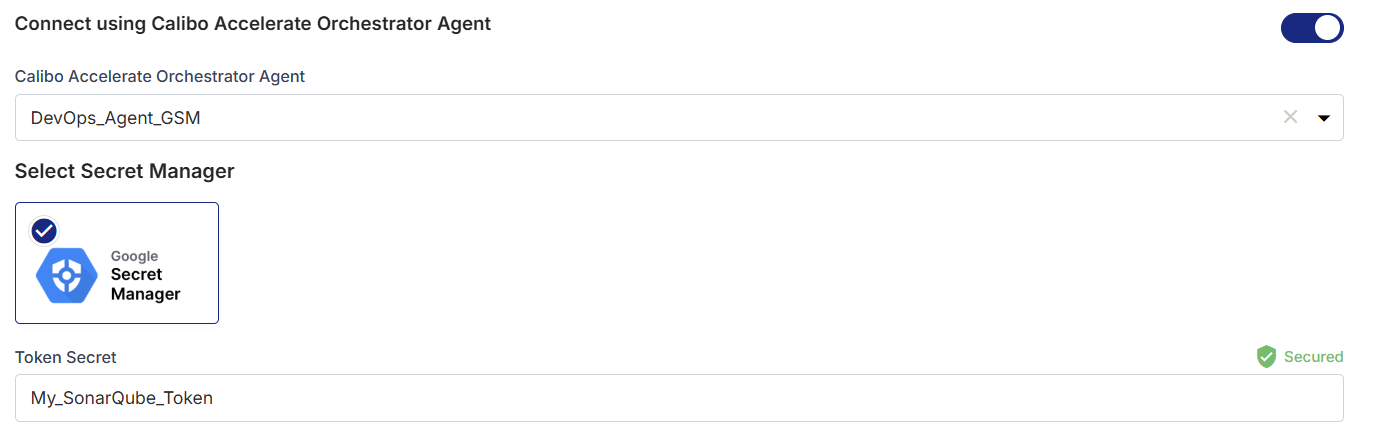
-
Select Secret Manager
If you don't use the Calibo Accelerate Orchestrator Agent, you can directly provide your SonarQube or SonarCloud credentials in the configuration, or retrieve it from a secrets management tool of your choice (such as AWS Secrets Manager, Azure Key Vault or Google Secret Manager). Do one of the following:
-
Select Calibo Accelerate and type your SonarQube or SonarCloud account password. In this case, the credentials are securely stored in the Calibo-managed secrets store.
-
Select AWS Secrets Manager. In the Secrets Management Tool dropdown list, the AWS Secrets Manager configurations that you save and activate in the Secret Management section on the Cloud Platform, Tools & Technologies screen are listed for selection. Select the configuration of your choice. Provide the Secret Name, Username Key, and the Password Key for the Calibo Accelerate platform to retrieve the secrets.
-
Select Azure Key Vault. In the Vault Configuration dropdown list, the Azure Key Vault configurations that you save and activate in the Secret Management section on the Cloud Platform, Tools & Technologies screen are listed for selection. Select the configuration of your choice. Provide the Vault Name, Username Secret, and Password Secret for the Calibo Accelerate platform to retrieve the credential values.
-
Select Google Secret Manager, In the Secret Manager Tools dropdown list, the Google Secret Manager configurations that you save and activate in the Secret Management section on the Cloud Platform, Tools & Technologies screen are listed for selection. Select the configuration of your choice. Provide the Token Secret for the Calibo Accelerate platform to retrieve the credential values.
-
-
- For SonarCloud installation, provide the Organization Key that you have set in SonarCloud.
- Secure configuration details with a password
To password-protect your connection details, enable the Secure configuration details with a password option, enter a password, and then retype it to confirm.This is optional but recommended. When you share the connection details with multiple users, password protection helps you ensure authorized access to the connection details.
-
Test Connection
Click Test Connection to check if you can connect to the configured SonarQube account successfully. -
After you save and activate the configured connection details, you can see them listed on the Cloud Platform, Tools & Technologies screen.
Qualys
Prerequisites
-
To incorporate Qualys vulnerability scans into the Jenkins CI/CD pipeline (the default CI/CD tool used in the Calibo Accelerate platform) install the Qualys Web App Scanning Connector for Jenkins into your Jenkins instance.
-
Install Qualys container scan agent on the Jenkins Master/Slave machine (the environment where Jenkins is running) with CI/CD enabled flag.
To save the connection properties of your Qualys account, provide the following details :
-
Configuration Name: Give a name to your configuration. Your Qualys connection details are saved by this name in the Calibo Accelerate platform.
-
Qualys Platform: Select the platform identifier where your Qualys account is located.
-
Qualys Server URL: The URL of your Qualys API server is auto-populated depending on your selection of the Qualys platform.
-
To provide your Qualys account credentials, do one of the following:
-
Connect using Calibo Accelerate Orchestrator Agent:
Turn on this toggle to use Calibo Accelerate Orchestrator Agent to programmatically retrieve the Qualys credential values stored in your secrets management tool within your private network and to establish communication with your Qualys instance.
In the Calibo Accelerate Orchestrator Agent dropdown list, all your configured agents are displayed. Select the one you want to use to connect to your Qualys instance.
The secrets management tool that the selected Orchestrator Agent is authorized to access for retrieving secrets is auto-selected. Specify the details of Qualys secrets that the agent should retrieve from the secrets management tool. Currently, we support AWS Secrets Manager, Azure Key Vault, and Google Secret Manager.
For AWS Secrets Manager, provide the secret name, username key, and password key for your Qualys credentials.
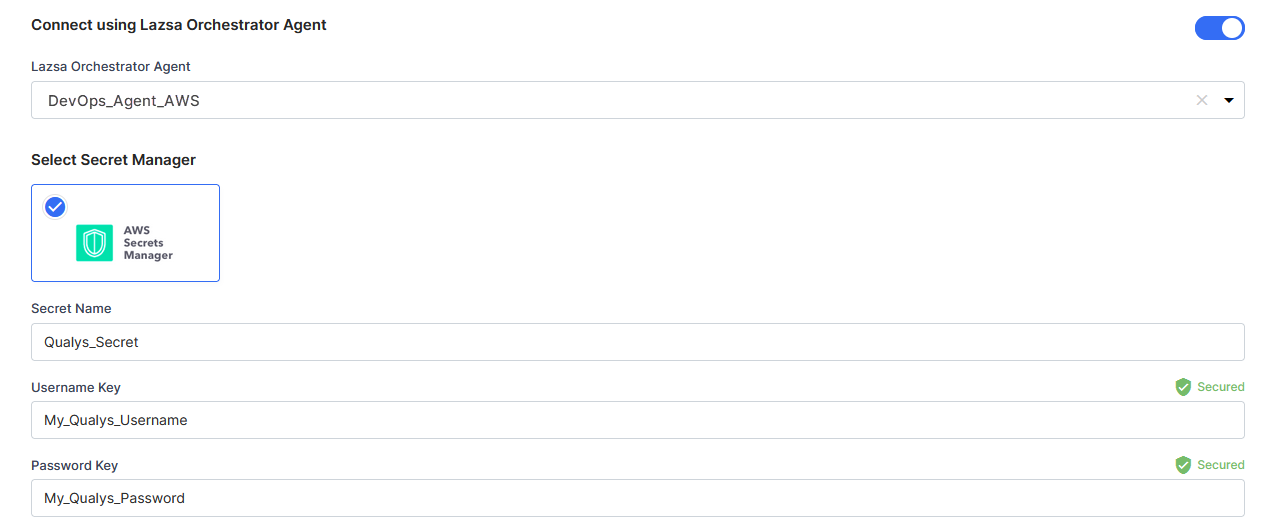
For Azure Key Vault, provide the Vault Name, Username Secret, and Password Secret for your Qualys account credentials.
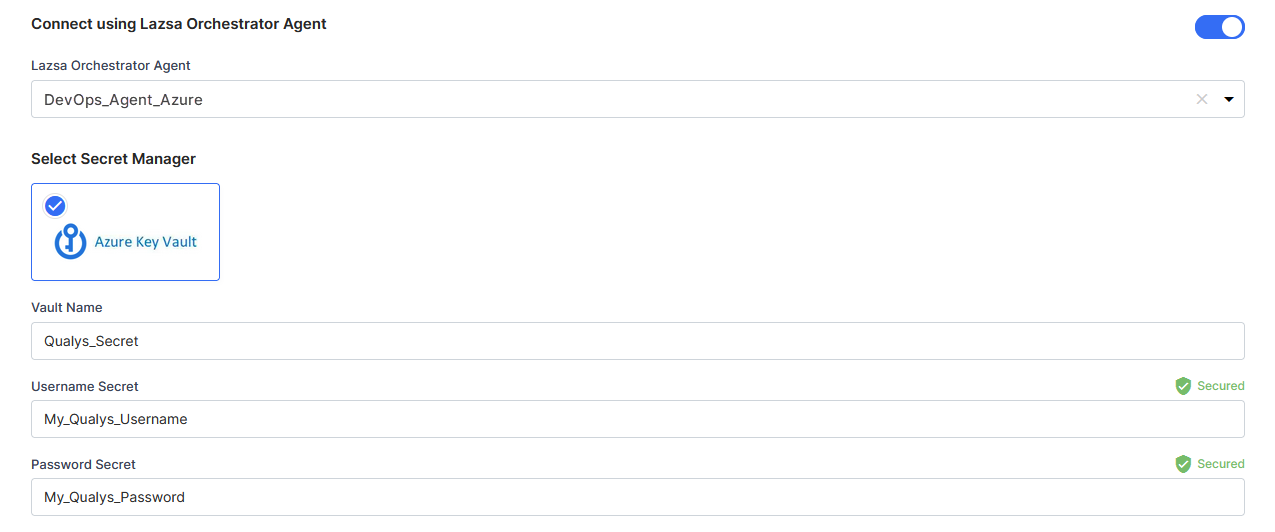
For Google Secret Manager, provide the Username Secret and Password Secret for your Qualys account credentials.
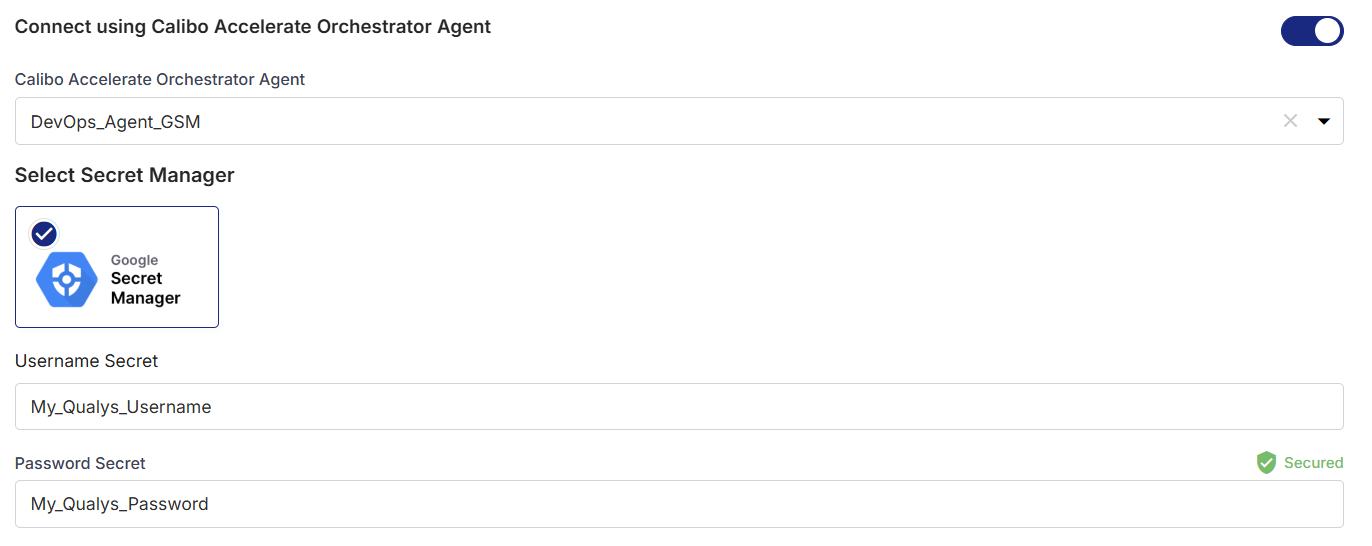
-
Select Secret Manager
If you don't use the Calibo Accelerate Orchestrator Agent, you can directly provide your Qualys credentials in the configuration, or retrieve it from a secrets management tool of your choice (such as AWS Secrets Manager, Azure Key Vault or Google Secret Manager). Do one of the following:
-
Select Calibo and type your Qualys account username and password. In this case, the user credentials are securely stored in the Calibo-managed secrets store.
-
Select AWS Secrets Manager. In the Secrets Management Tool dropdown list, the AWS Secrets Manager configurations that you save and activate in the Secret Management section on the Cloud Platform, Tools & Technologies screen are listed for selection. Select the configuration of your choice. Provide the Secret Name, Username Key, and the Password Key for the Calibo Accelerate platform to retrieve the secrets.
-
Select Azure Key Vault. In the Vault Configuration dropdown list, the Azure Key Vault configurations that you save and activate in the Secret Management section on the Cloud Platform, Tools & Technologies screen are listed for selection. Select the configuration of your choice. Provide the Vault Name, Username Secret, and Password Secret for the Calibo Accelerate platform to retrieve the credential values.
-
Select Google Secret Manager, In the Secret Manager Tools dropdown list, the Google Secret Manager configurations that you save and activate in the Secret Management section on the Cloud Platform, Tools & Technologies screen are listed for selection. Select the configuration of your choice. Provide the Username Secret and Password Secret for the Calibo Accelerate platform to retrieve the credential values.
-
-
- Secure configuration details with a password
To password-protect your Qualys account connection details, enable the Secure configuration details with a password option, enter a password, and then retype it to confirm.This is optional but recommended. When you share the connection details with multiple users, password protection helps you ensure authorized access to the connection details.
-
Test Connection
Click Test Connection to check if you can connect to the configured Qualys platform instance successfully. -
After you save and activate the configured connection details, you can see them listed on the Cloud Platform, Tools & Technologies screen.
Snyk
Snyk helps you identify and fix vulnerabilities in application dependencies and container images. When integrated with Calibo Accelerate, Snyk scans are executed as part of the CI/CD pipeline to detect known vulnerabilities and prevent insecure builds from progressing. Once configured, you can select the Snyk configuration in the deployment stage configuration to enforce security checks during deployment workflows.
Prerequisites
Before configuring the Snyk connection details into Calibo Accelerate, ensure the following:
-
Snyk Account and Plan Requirements
-
You have a valid Snyk account.
-
The Snyk organization is entitled for API access.
-
The organization must be on a paid plan (or a plan that explicitly includes Snyk API access). Free or non-entitled plans may not allow Snyk API access.
-
-
Snyk API Token
-
You have a Snyk User API Token generated from the Snyk account.
-
The token has read permissions for:
-
Organizations
-
Projects
-
Issues (vulnerabilities).
-
-
-
Organization Access
-
The user associated with the API token:
-
Is a member of the Snyk organization being selected.
-
Has sufficient permissions to access organization-level data.
-
-
The organization must be selectable after a successful connection test.
-
-
Snyk API Base URL
You know the Snyk API base URL for your account region.
To save the connection properties of your Snyk account, provide the following details :
-
Name: Give a name to your configuration. Your Snyk connection details are saved by this name in Calibo Accelerate.
-
Snyk API URL: Enter the base URL of the Snyk API for the region where your Snyk account is hosted. Calibo Accelerate uses this endpoint to authenticate with Snyk and trigger vulnerability scans during CI/CD execution. Ensure that you select the correct regional API URL to avoid authentication or scan failures.
Region Base URL US 01 https://api.snyk.io/ US 02 https://api.us.snyk.io/ EU 01 https://api.eu.snyk.io/ AU 01 https://api.au.snyk.io/ 
Note:
Only HTTPS endpoints are supported. HTTP requests will return a 404 error.
-
Depending on how you want your Snyk credentials to be retrieved and used for authentication, do one of the following:
-
Connect using Calibo Accelerate Orchestrator Agent:
Turn on this toggle to use Calibo Accelerate Orchestrator Agent to programmatically resolve the Snyk credentials stored in your secrets management tool within your private network and to establish communication with your Snyk instance.
In the Calibo Accelerate Orchestrator Agent dropdown list, all your configured agents are displayed. Select the one you want to use to connect to your Snyk instance.
The secrets management tool (AWS Secrets Manager, Azure Key Vault or Google Secret Manager) associated with the selected agent is auto-selected. Specify the details of Snyk secrets that the agent should retrieve from the secrets management tool.
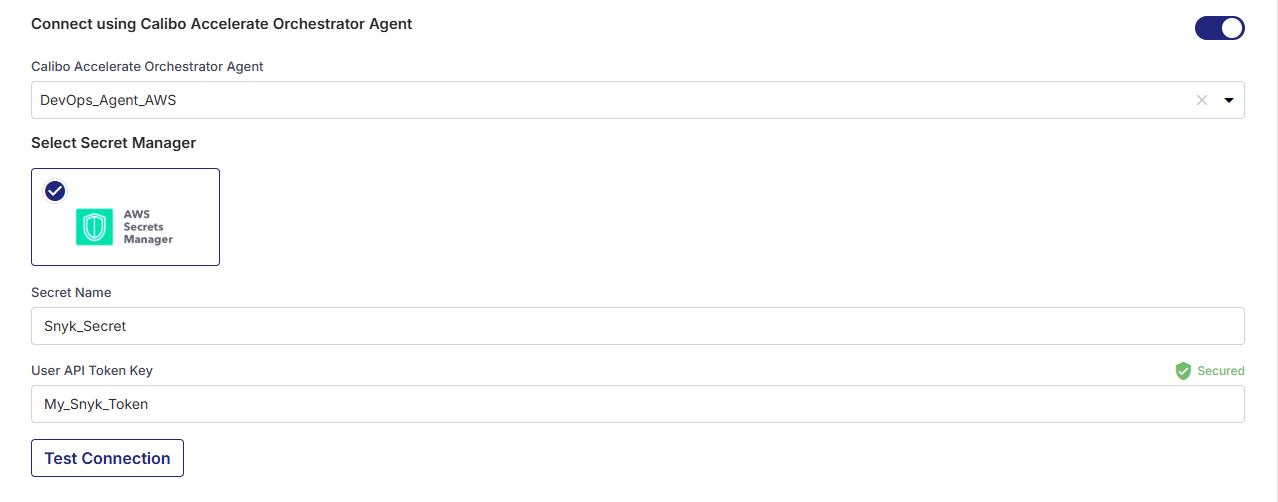
For AWS Secrets Manager, provide the Secret Name and the corresponding User API Token Key so that the agent can securely fetch the Snyk API token at runtime. Click Test Connection to check whether you can connect to the configured Snyk instance successfully.
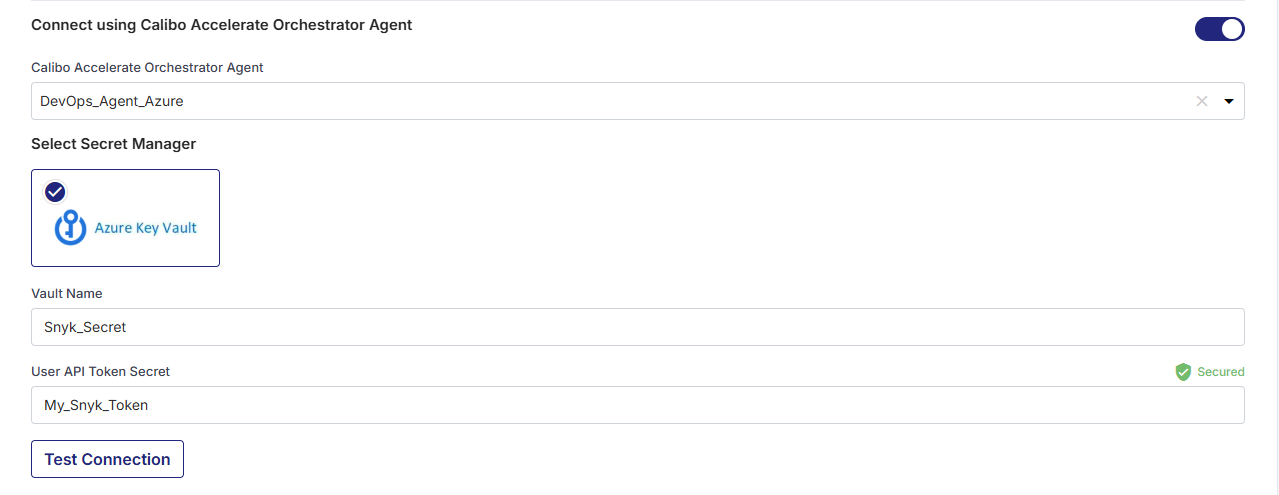
For Azure Key Vault, provide the Vault Name and the corresponding User API Token Secret so that the agent can securely fetch the Snyk API token at runtime. Click Test Connection to check whether you can connect to the configured Snyk instance successfully.
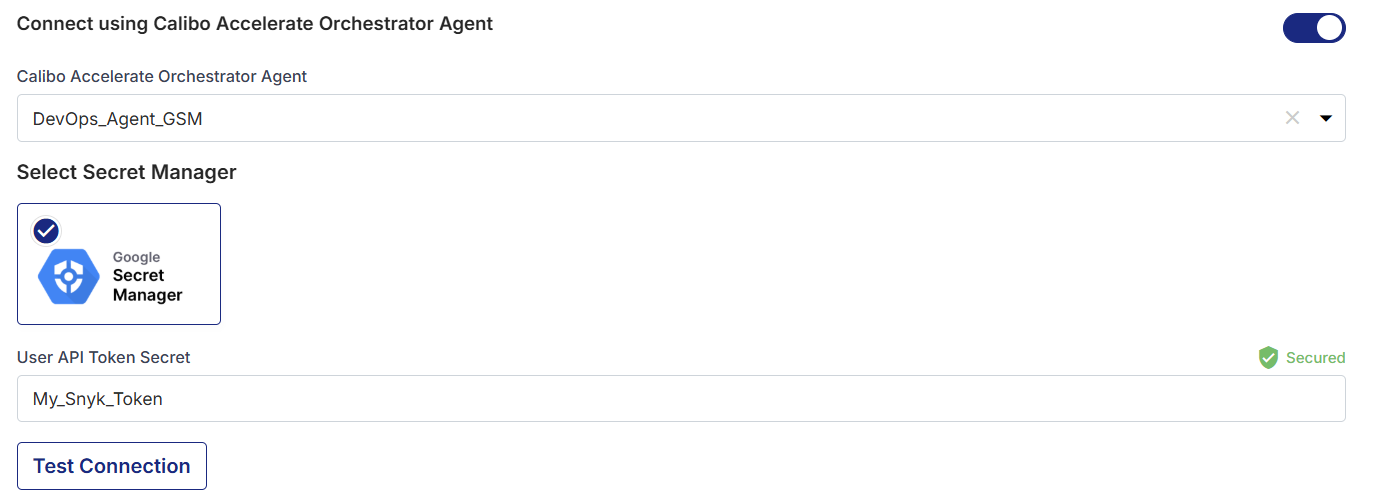
For Google Secret Manager, provide the corresponding User API Token Secret so that the agent can securely fetch the Snyk API token at runtime. Click Test Connection to check whether you can connect to the configured Snyk instance successfully.
-
Select Secret Manager
If you don't use the Calibo Accelerate Orchestrator Agent, you can manually provide your Snyk User API Token, or retrieve it programmatically from your secrets management tool (such as AWS Secrets Manager, Azure Key Vault or Google Secret Manager).
Do one of the following:
- Option 1: Calibo Accelerate (built-in secrets store)
Select Calibo and type your Snyk account User API Token.
In this case, the token is securely stored in the Calibo-managed secrets store.
Then click Test Connection to check whether you can connect to the configured Snyk instance successfully.
- Option 2: AWS Secrets Manager
Select AWS Secrets Manager.In the Secrets Management Tool dropdown list, the AWS Secrets Manager configurations that you save and activate in the Secret Management section on the Cloud Platform, Tools & Technologies screen are listed for selection.
Select your desired secrets management tool configuration. Provide the Secret Name, and the User API Token Key so that Calibo Accelerate can securely fetch the Snyk API token at runtime.
Then click Test Connection to check whether you can connect to the configured Snyk instance successfully.
- Option 3: Azure Key Vault
Select Azure Key Vault. In the Vault Configuration dropdown list, the Azure Key Vault configurations that you save and activate in the Secret Management section on the Cloud Platform, Tools & Technologies screen are listed for selection.
Select your desired secrets management tool configuration of your choice. Provide the Vault Name, Username Secret, and Password Secret for the Calibo Accelerate platform to retrieve the credential values.
Then click Test Connection to check whether you can connect to the configured Snyk instance successfully.
-
Option 4: Google Secret Manager
Select Google Secret Manager. In the Secret Manager Tools dropdown list, the Google Secret Manager configurations that you save and activate in the Secret Management section on the Cloud Platform, Tools & Technologies screen are listed for selection.
Select your desired secrets management tool configuration of your choice. Provide the Username API Token Secret for the Calibo Accelerate platform to retrieve the credential values.
Then click Test Connection to check whether you can connect to the configured Snyk instance successfully.
- Option 1: Calibo Accelerate (built-in secrets store)
-
-
Organization
After you fill all the required fields on this screen and successfully test the connection to your Snyk account, the names of the organizations associated with your user account are fetched automatically. Choose your desired organization from the list. Calibo Accelerate uses this organization for authentication, project creation, and vulnerability scanning.
Note:
If the organization does not appear in the Organization drop-down and an error similar to the following is displayed:
“The org <org-name> is not entitled for API access. Please upgrade your plan to access this capability.”
This indicates that the selected Snyk organization does not have API access enabled. Ensure that the organization is on a plan that includes Snyk API access, then retry the connection.
- Secure configuration details with a password
To password-protect your Snyk connection details, enable the Secure configuration details with a password option, enter a password, and then retype it to confirm.
This is optional but recommended. When you share the connection details with multiple users, password protection helps you ensure authorized access to the connection details.
-
After you save and activate the configured connection details, you can see your Snyk connection configuration listed on the Cloud Platform, Tools & Technologies screen.
-
| What's next? Settings |